

Integrations
Zoom Integration
Introduction
This guide explains how to set up an integration between Zoom and SpeechMind. The goal is for your Zoom meeting recordings to be automatically imported into SpeechMind and logged there, without any manual uploads.
Table of Contents
- Where you are in the software
- Adding and configuring an integration
- Zoom authentication
- Automatic Import of Zoom Recordings
- Viewing transcripts
- Removing an app
- Summary
1. Where You Are in the Software
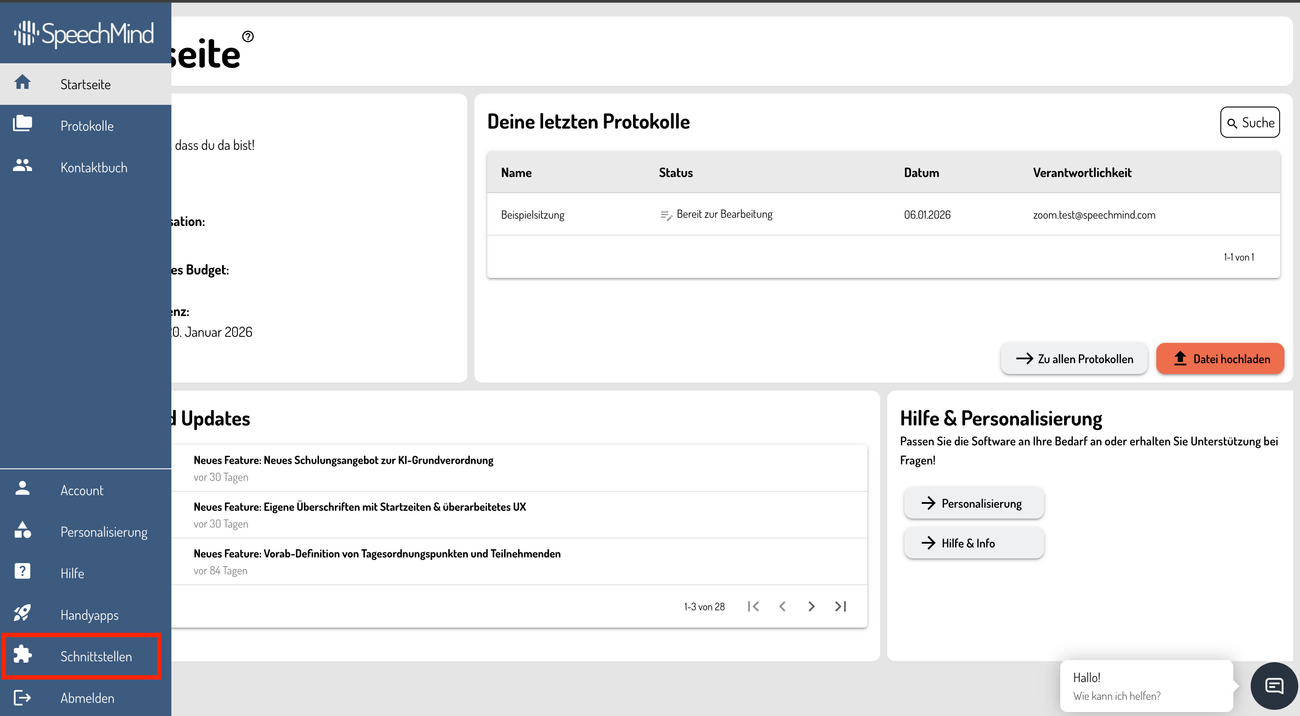
You start on the SpeechMind home page. In the left-hand menu bar, you will find a puzzle icon. Click on this icon to access the integrations.
2. Adding and Configuring an Integration
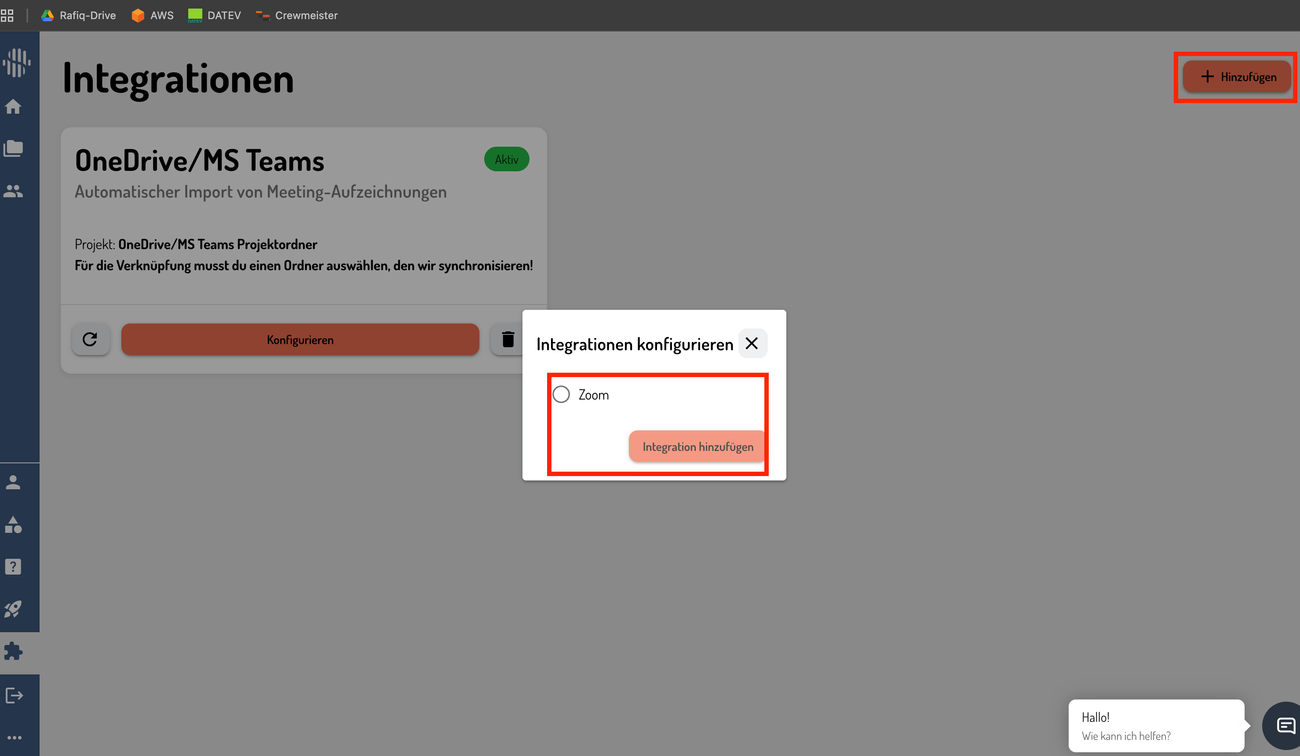
- Click on the “Add” icon (Hinzufügen)
- Select the Zoom integration
- Click “Create” (Integration hinzufügen)
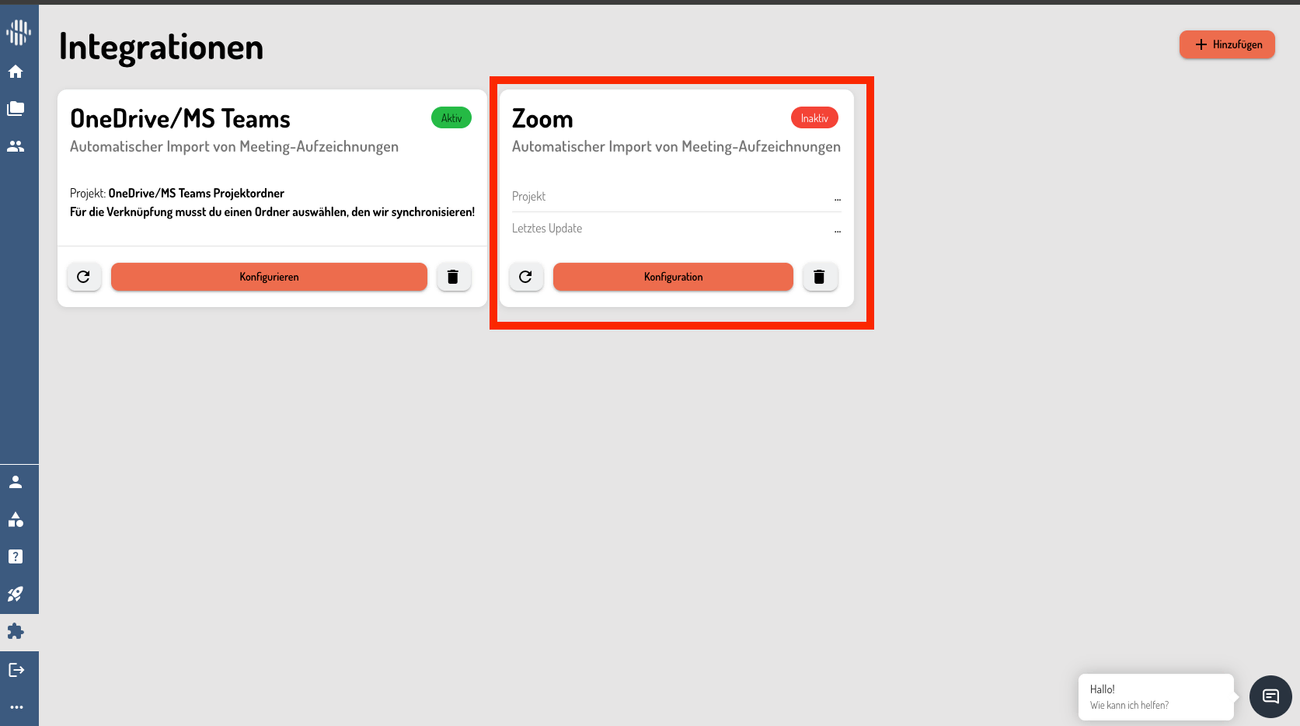
- The integration will now appear but is not yet configured (Status is Inactiv).
- Click “Configure” / “Konfiguration”
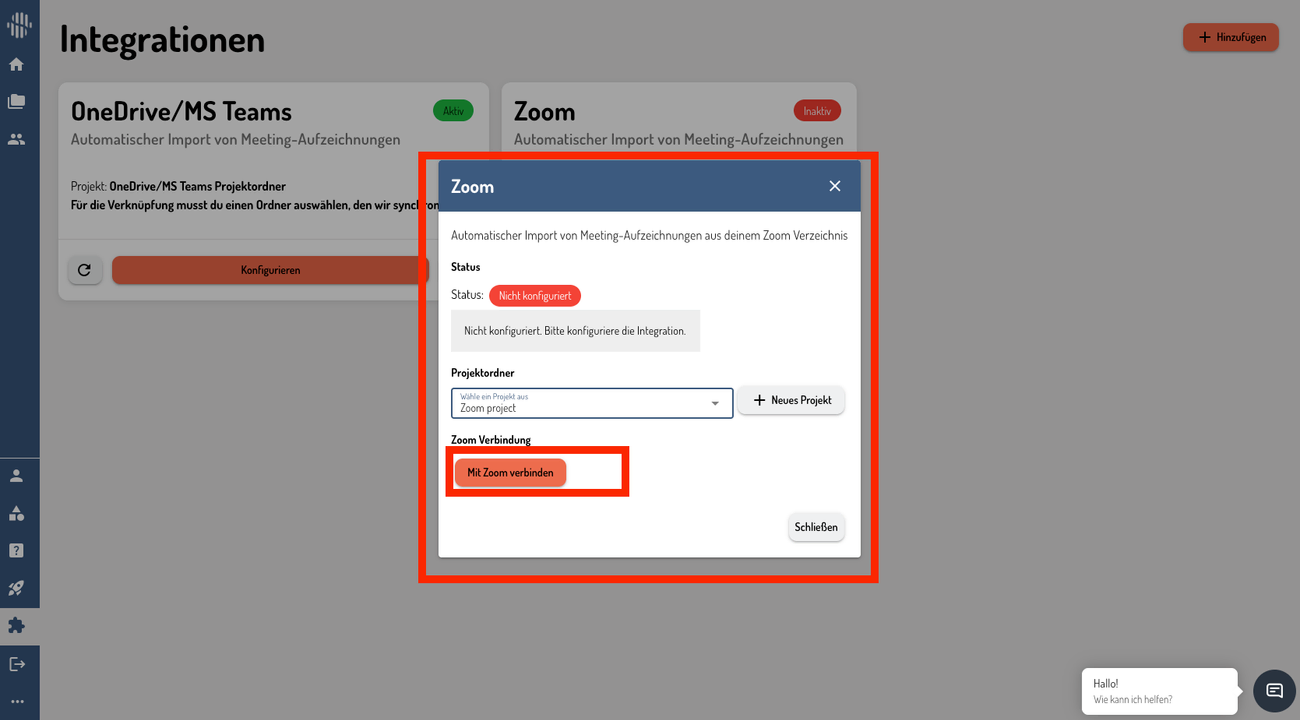
- A pop-up window for authentication will open
- Select the project in which AI transcripts of Zoom recorded meeting will be stored
- If you don’t have a project, click on “Neues Projekt” and create a new one
- Click on Mit Zoom verbinden
 ---
---
3. Zoom Authentication
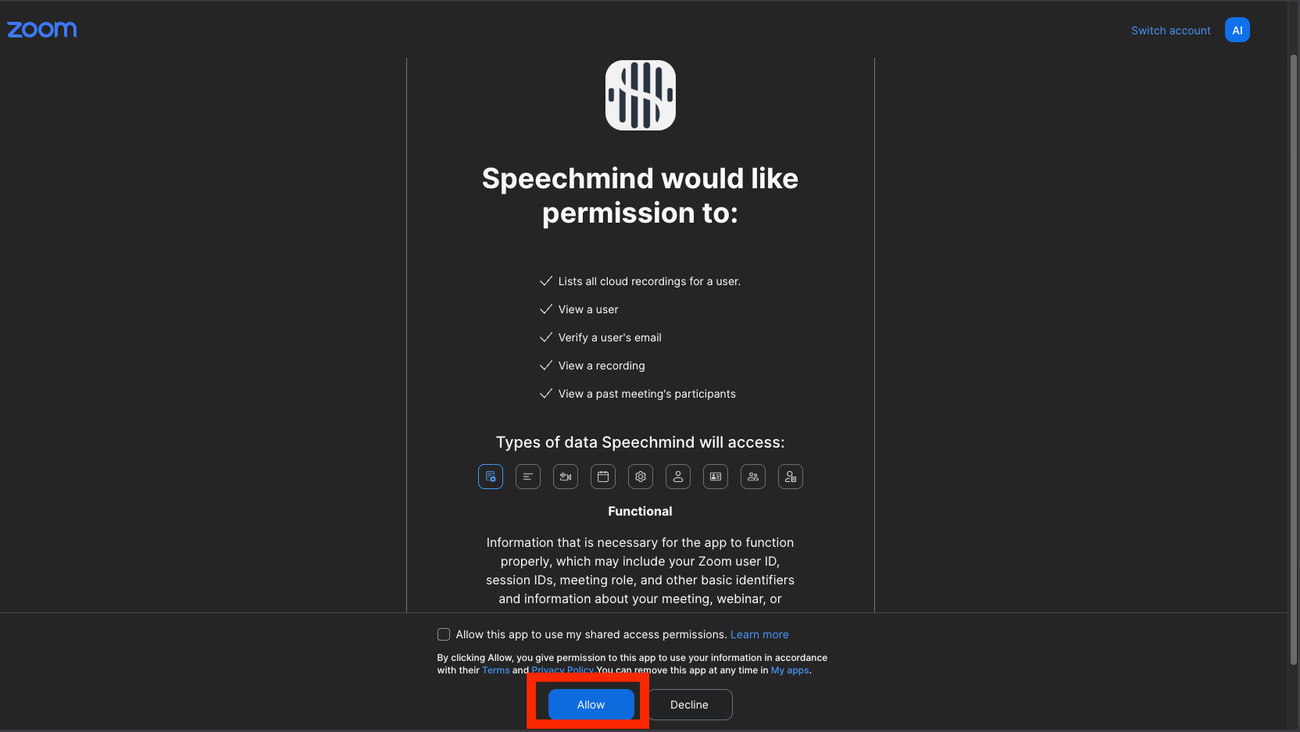
- You will be redirected to Zoom for login
- Speechmind asks for permissions to access Zoom data. Click Allow.
- Upon success, Zoom will redirect you back to SpeechMind
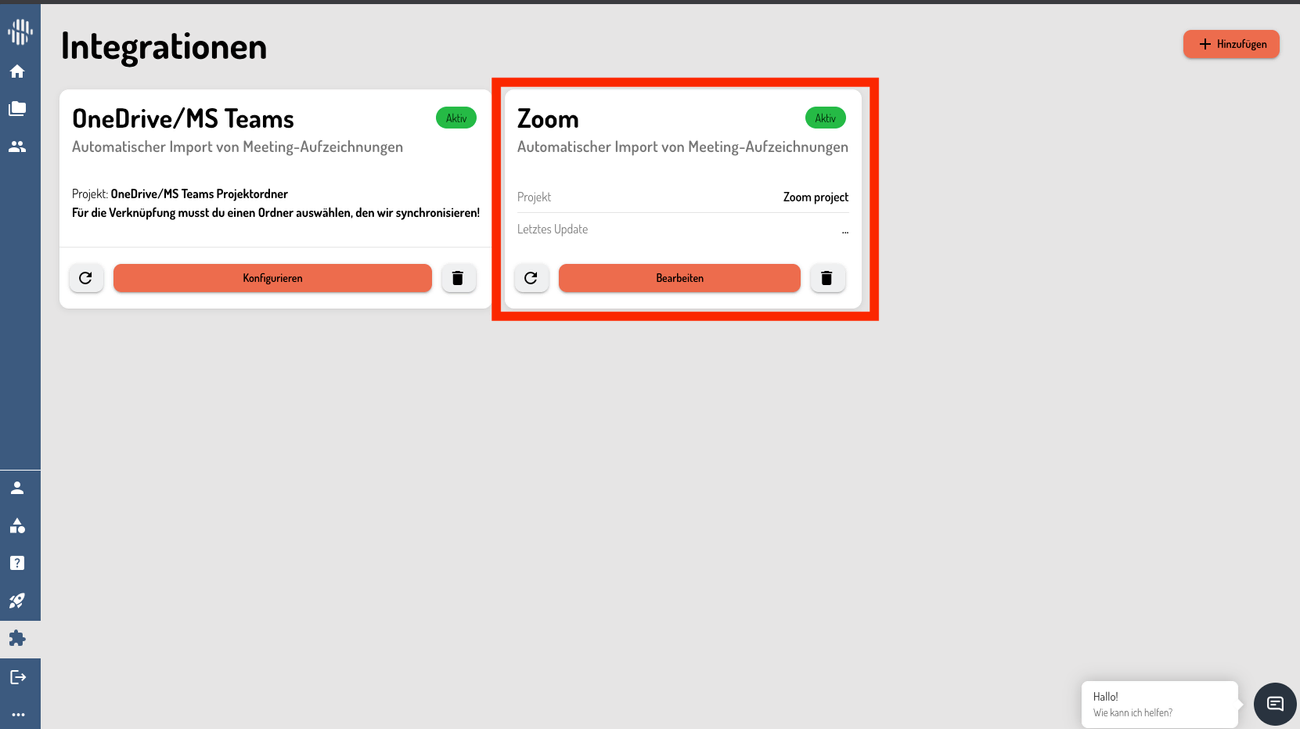
💡 Tip: If authentication fails, check your Zoom login details or contact your IT administrator.
4. Automatic Import of Zoom Recordings
After successful authentication, no further action is required from the user.
Once a Zoom meeting is recorded and at least one participant attends the meeting, Zoom automatically notifies SpeechMind after the recording becomes available. The recording is then imported and processed automatically.
📌 Note: All Zoom meeting recordings are automatically transferred to SpeechMind and logged without any manual steps.
5. Viewing Transcripts
- Go to the “Protokolle” menu.
- In “Letzte Protokolle”, you can see your most recent meeting transcripts.
- You can also open Private Projects and navigate to the project you selected during the Zoom integration setup. The corresponding meeting transcripts will be available there as well.
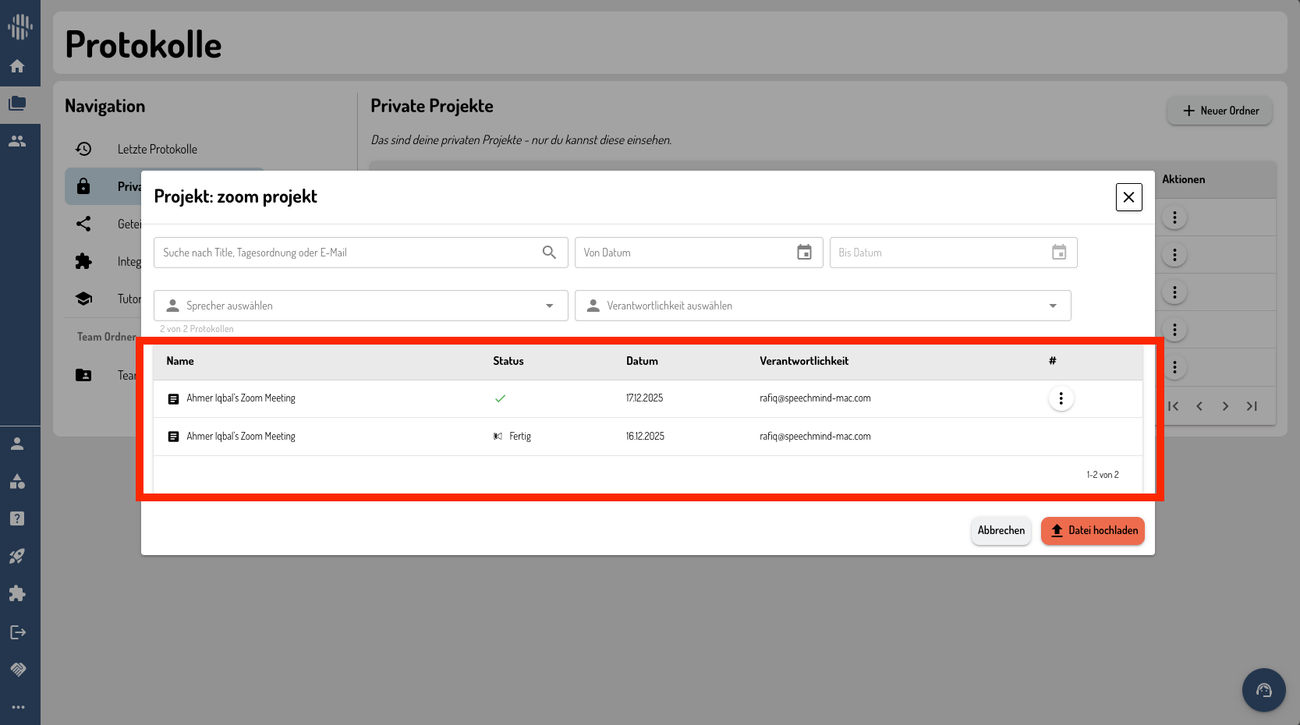
📌 Note: Future Zoom meeting transcripts will appear here automatically. You can also upload files manually if needed.
6. Removing an App
To remove the Zoom integration:
- Go to your Zoom integrations in SpeechMind.
- Click the Delete button next to the Zoom integration.
- You will be redirected to the Zoom Marketplace, where you can see the installed application.
- From there, remove the installed application.
📌 Note: When you remove the app, SpeechMind will also automatically remove the Zoom integration on the backend.
Summary
- Home page → Left menu → Puzzle icon
- Add Zoom integration
- Start configuration → Zoom authentication → configured
- Attend any Zoom meeting with the recording enabled
- After the meeting is completed, the transcript will appear automatically in the selected project
- The transcript is then available for further processing
Have questions?
Still have questions? Talk to support.