

Integrations
Teams/OneDrive Integration
Introduction
This guide explains how to set up an integration between Teams/OneDrive and SpeechMind. The goal is for your Teams/OneDrive recordings to be automatically imported into SpeechMind and logged there, without any manual uploads.
Table of Contents
- Where you are in the software
- Adding and configuring an integration
- Zoom authentication
- Automatic Import of Zoom Recordings
- Viewing transcripts
- Removing an app
- Summary
1. Where You Are in the Software
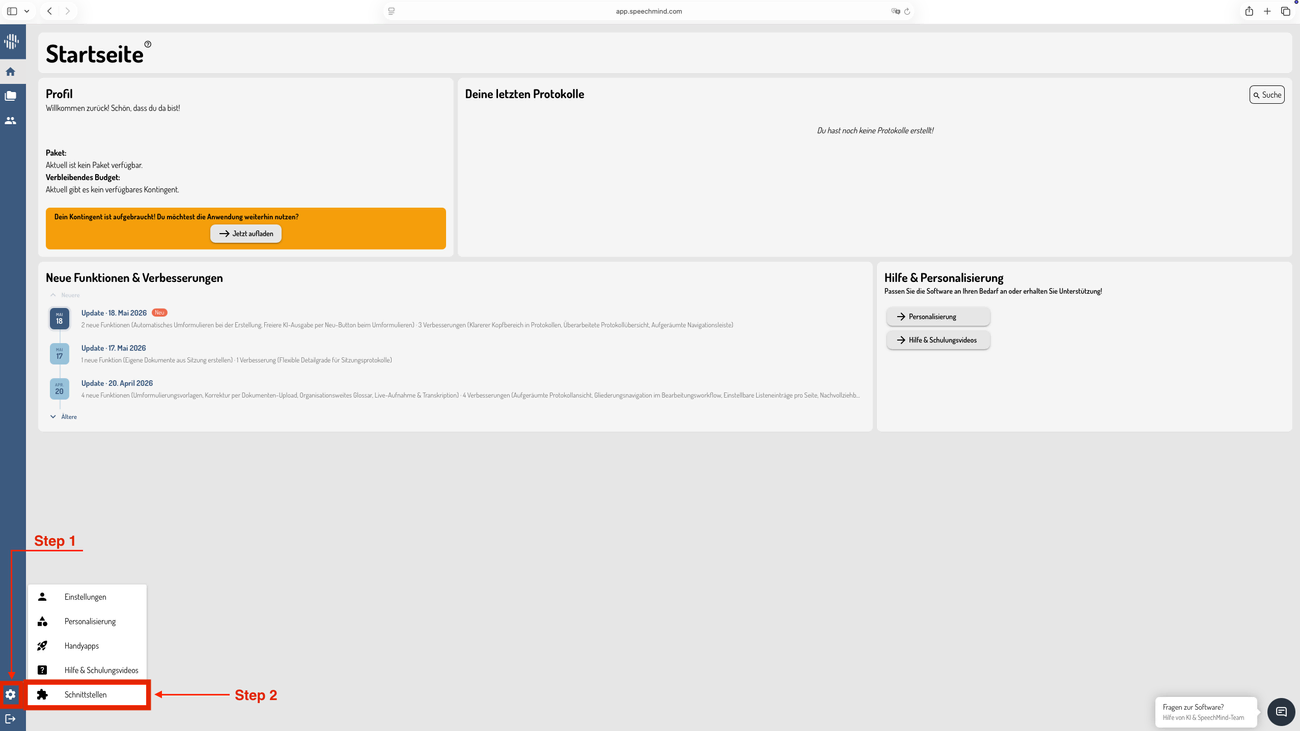
You start on the SpeechMind home page. In the left-hand menu bar, you will find a gear icon. Click on this icon and then click on Schnittstellen.
2. Adding and Configuring an Integration
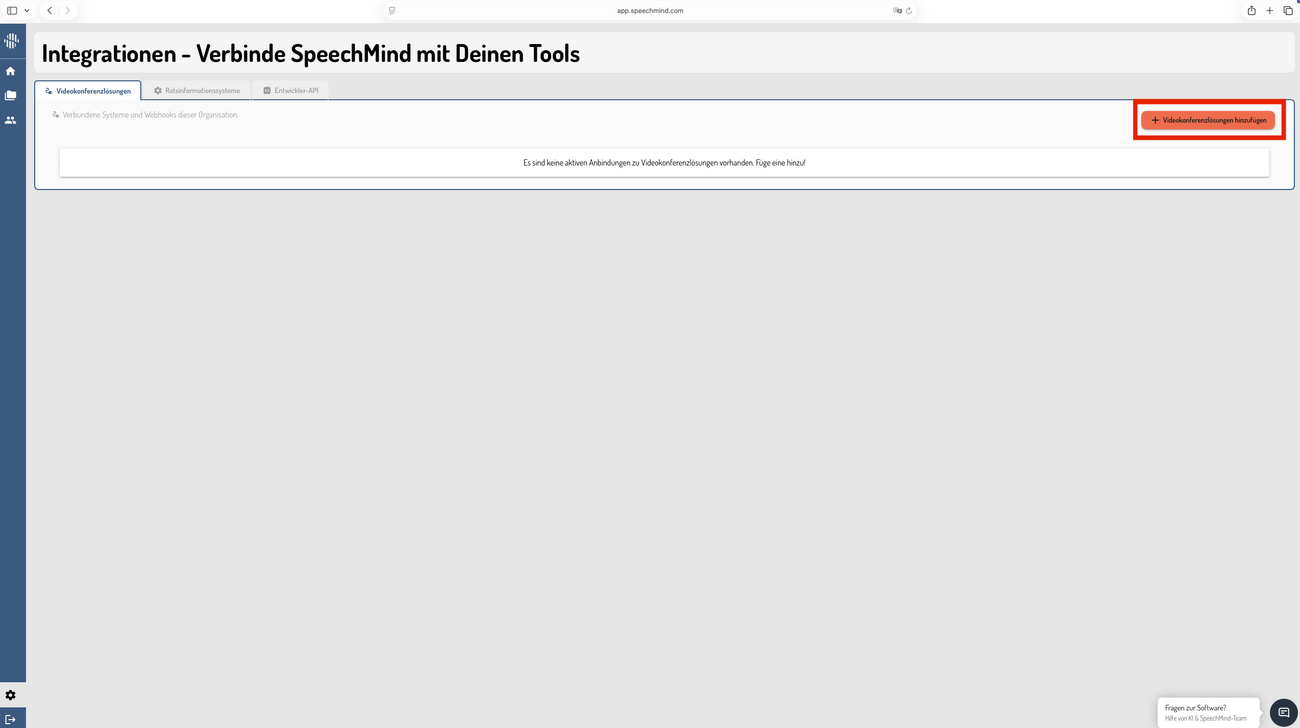
- Click on the “Add” icon (Videokonferenzlösungen hinzufügen)
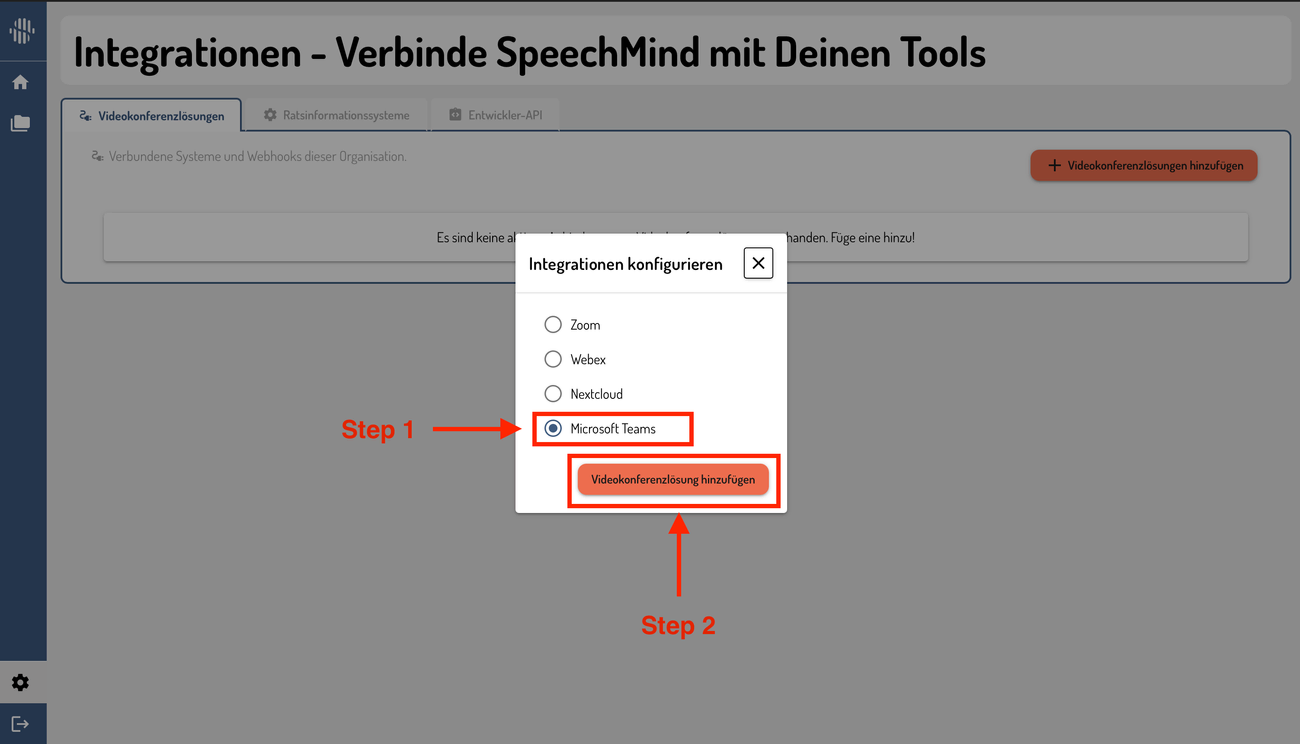
- Select the Microsoft Teams integration
- Click “Create” (Videokonferenzlösung hinzufügen)
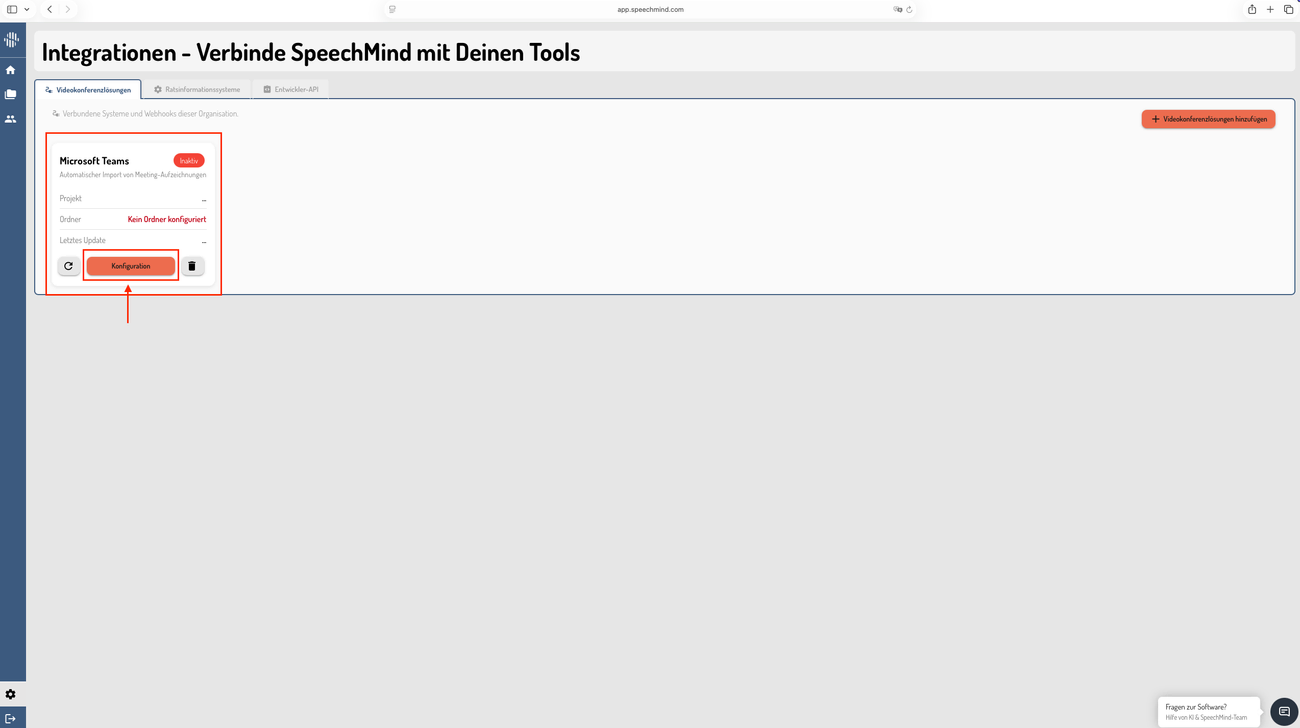
- The integration will now appear but is not yet configured (Status is Inactiv).
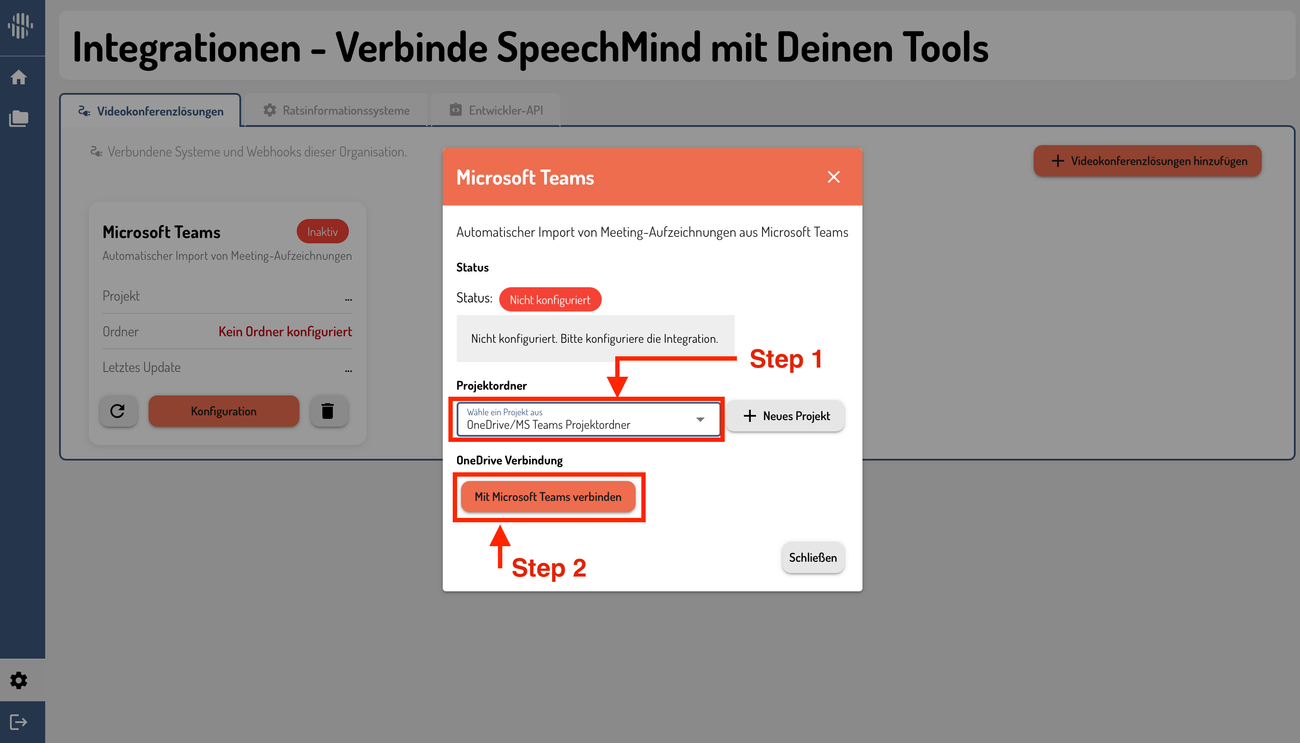
- Click “Configure” / “Konfiguration”
- A pop-up window for authentication will open
- Select the project in which AI transcripts of Teams/OneDrive recorded meeting will be stored
- If you don’t have a project, click on “Neues Projekt” and create a new one
- Click on Mit Microsoft Teams verbinden
 ---
---
3. Teams/OneDrive Authentication
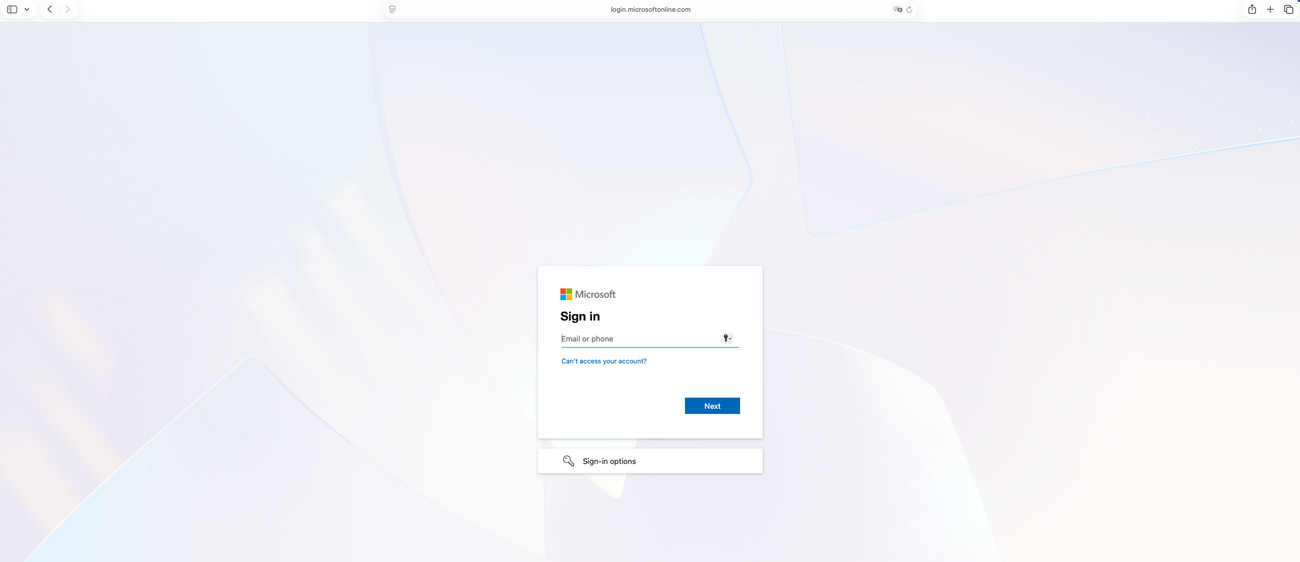
- You will be redirected to Microsoft for login.
- Proceed with login and authentication.
- If you have multiple accounts, make sure to select the account that has access to the OneDrive data you want to import into SpeechMind.
- Speechmind asks for permissions to access OneDrive data. Click Allow.
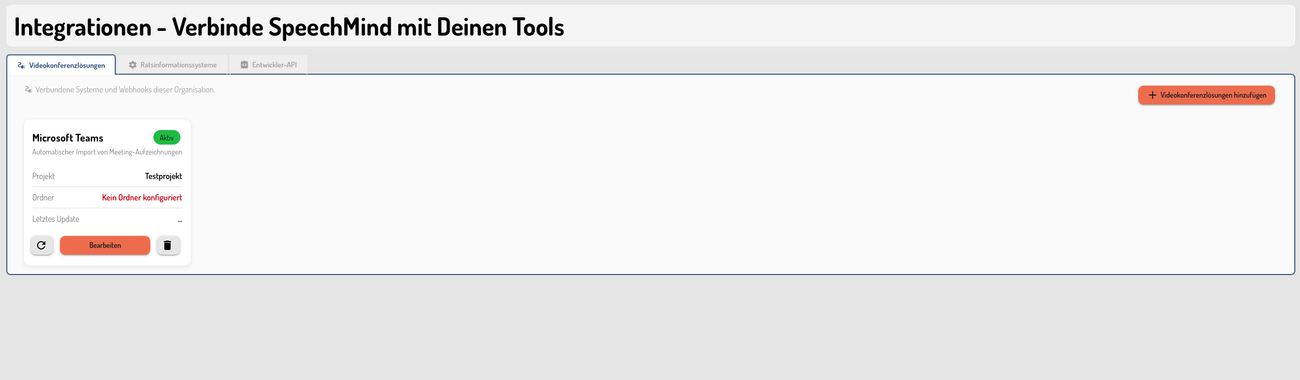
- Upon successful authentication, Microsoft will redirect you back to SpeechMind.
4. Teams/OneDrive Project Selection
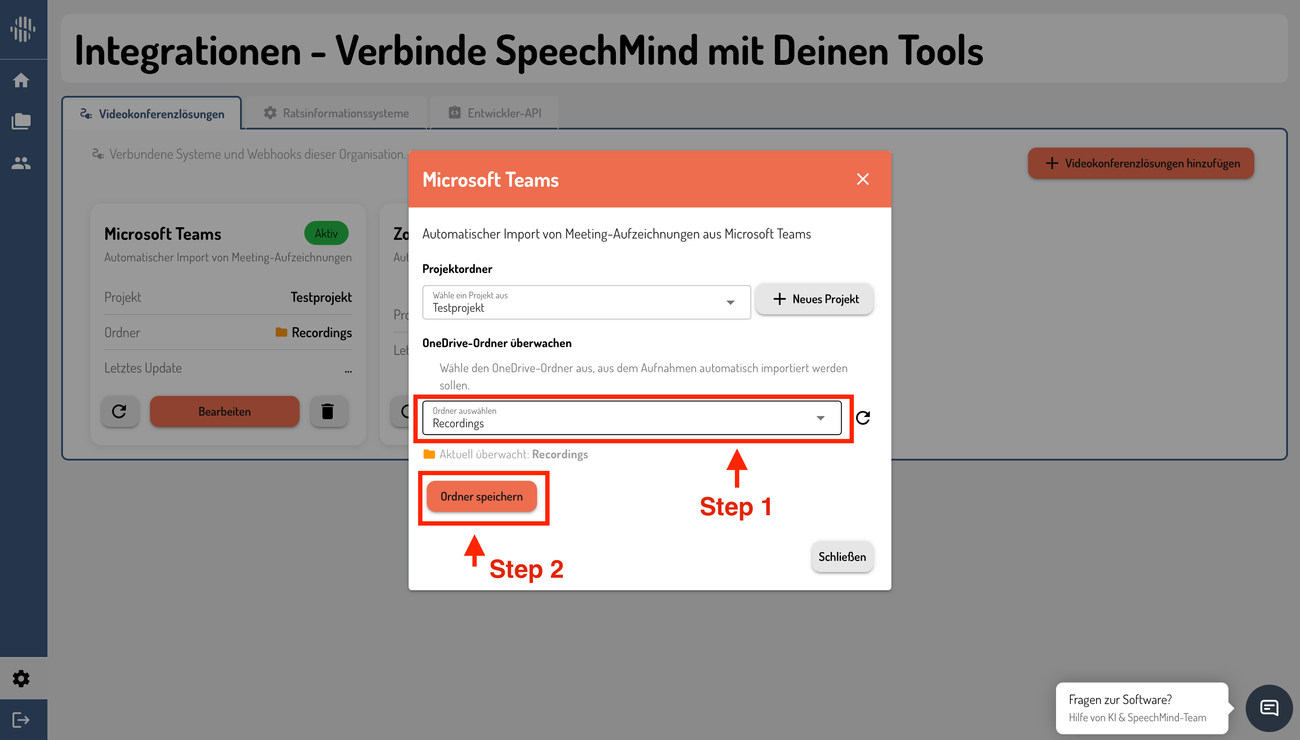
- Click on the Bearbeiten button.
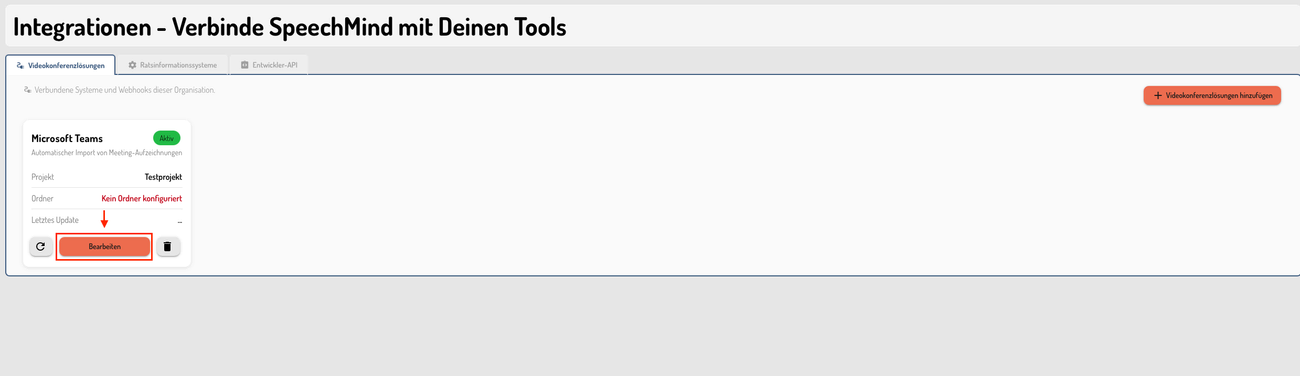
- A pop-up will show the list of folders in your OneDrive.
- Select the folder that you want SpeechMind to import the recordings from.
- If the folders are not listed, click on the Refresh icon.
- Click on Ordner speichern to save the folder selection.
5. Automatic Import of Teams/OneDrive Recordings
After successful authentication, no further action is required from the user.
Once a new meeting is recorded and is added to that folder, Microsoft will automatically notify SpeechMind after the recording becomes available. The recording will be then imported and processed automatically.
📌 Note: All Teams/OneDrive meeting recordings are automatically transferred to SpeechMind and logged without any manual steps.
6. Viewing Transcripts
- On the homepage you can see your latest meeting or you can go to the “Protokolle” menu.
- In “Letzte Protokolle”, you can see your most recent meeting transcripts.
- You can also open Private Projects and navigate to the project you selected during the Zoom integration setup. The corresponding meeting transcripts will be available there as well.
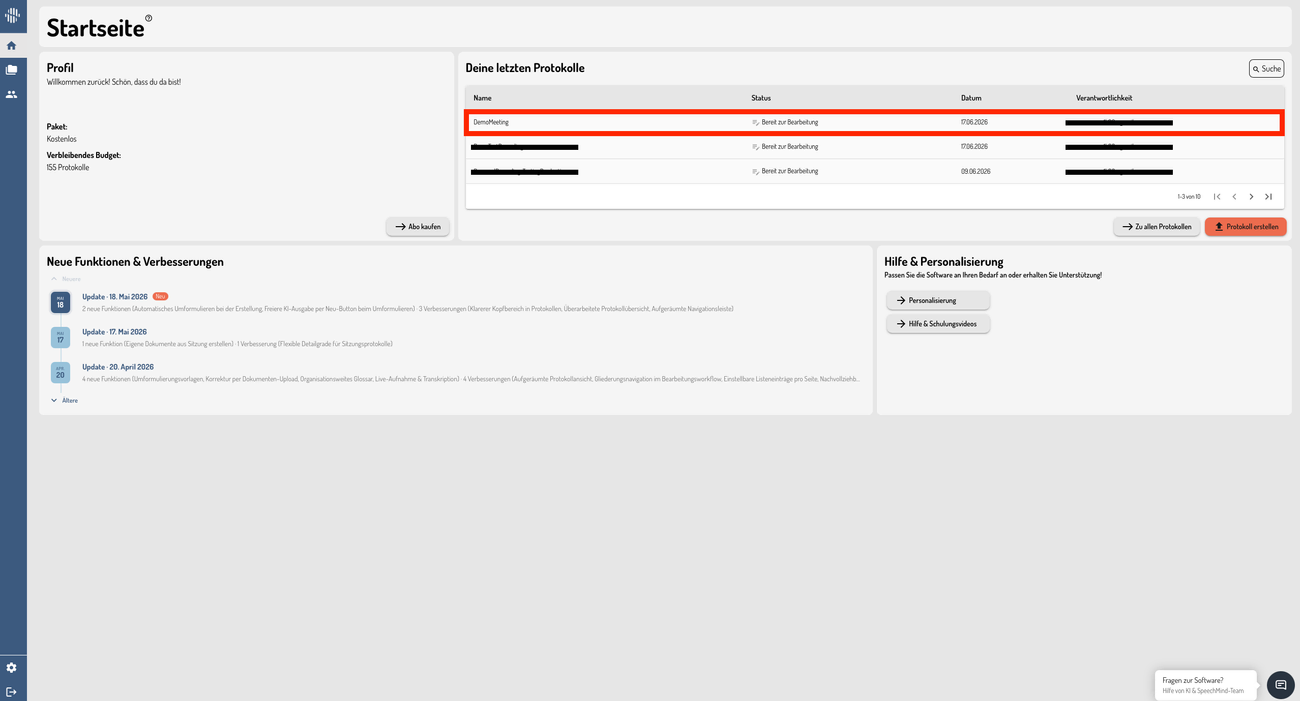
📌 Note: Future Teams/OneDrive meeting transcripts will appear here automatically. You can also upload files manually if needed.
7. Removing an App
To remove the Zoom integration:
- Go to your Teams/OneDrive integrations in SpeechMind.
- Click the Delete button next to the Teams/OneDrive integration.
- Your integration will be marked as deactivated. If you want to get teams subscription, you have to go through all the process again.
Summary
- Home page → Left menu → Gear Icon -> Puzzle Icon
- Add Teams/OneDrive integration
- Start configuration → Microsoft authentication → configured
- Attend any Teams meeting with the recording enabled
- After the meeting is completed, the transcript will appear automatically in the selected project
- The transcript is then available for further processing
Have questions?
Still have questions? Talk to support.